Read-only by design. Never writes to your bookmarks
No network access. Nothing is sent anywhere
No account, no tracking. No sign-up and no analytics
Features
One small button. Your whole bookmark library.
A Safari extension and a lightweight Mac app that read the bookmarks Safari already keeps.
At a glance
Saved? The toolbar already knows.
The button turns blue when the page you’re on is in your bookmarks. Hover to see which folder it’s in. Not saved yet? It tells you how many pages from the same site you already have.
Not saved Saved Needs access
Search
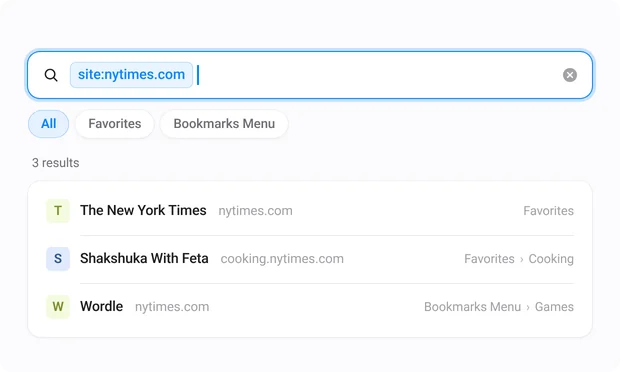
Search that speaks URL.
Find any bookmark by title or address, with its folder path on every result. Scope to Favorites or Bookmarks Menu, or narrow it down with:
site:nytimes.comhost:cooking.nytimes.com
Bookmark tree
Every bookmark, one click away.
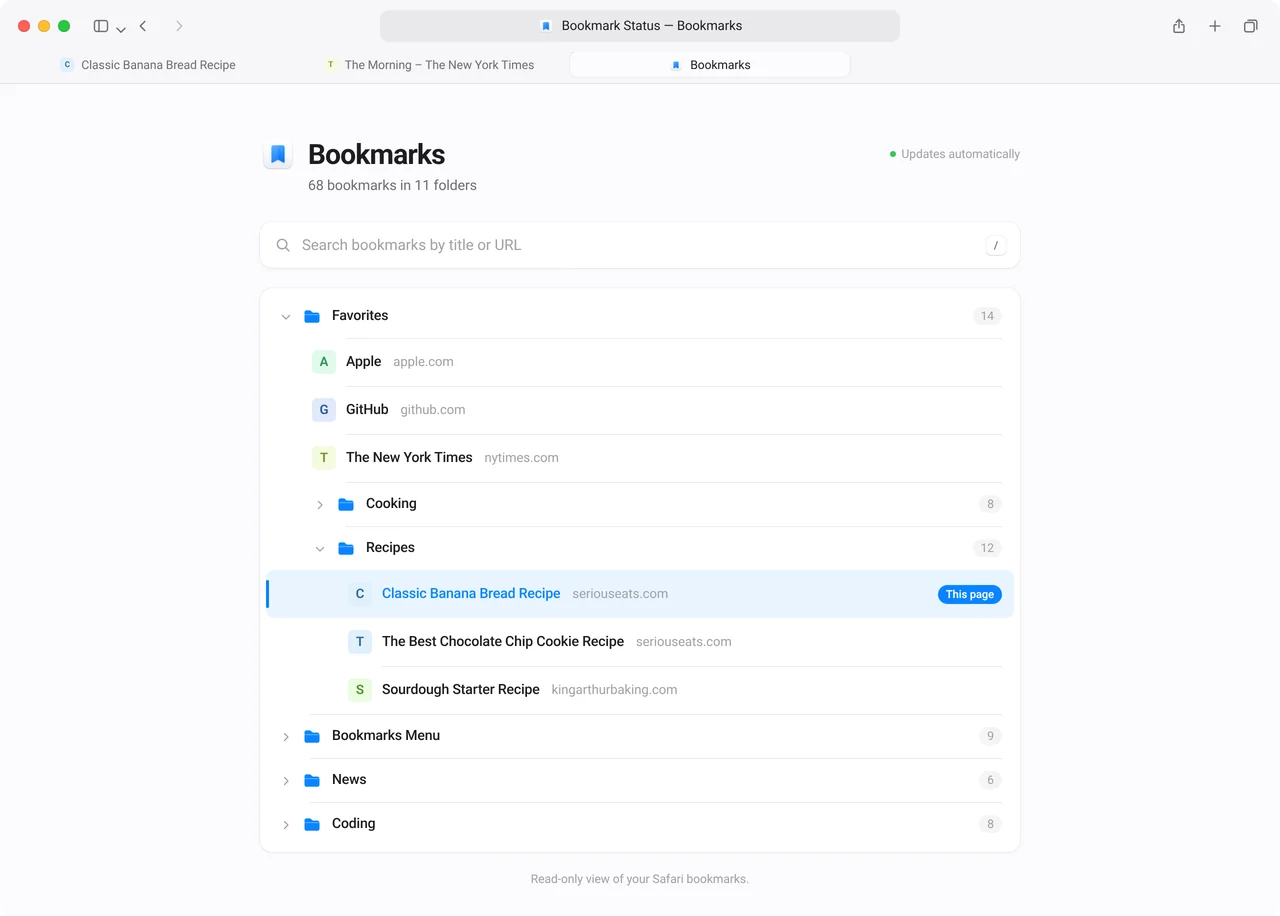
Click the button or press ⌥⇧B to open a clean, read-only view of all your bookmarks. The page you’re on is marked, and edits you make in Safari show up automatically.
Favorites › RecipesUpdates automatically
CClassic Banana Breadseriouseats.comThis page
TChocolate Chip Cookiesseriouseats.com
SSourdough Starterkingarthurbaking.com
Insights
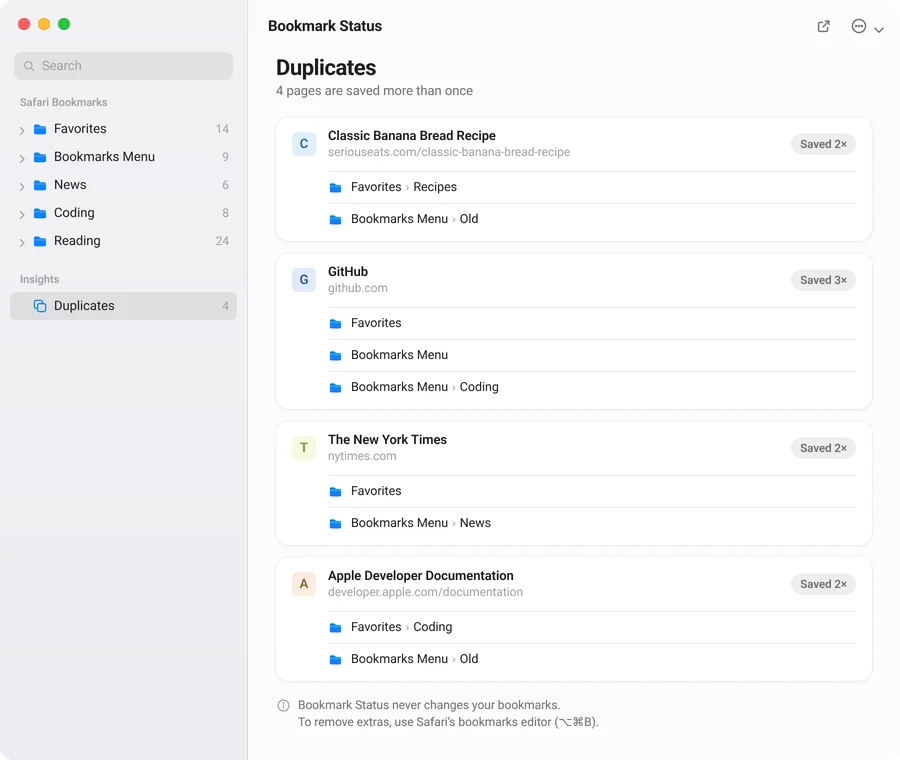
Spot pages you saved twice.
Insights › Duplicates lists every page saved in more than one place, with each folder it’s in. Tidy up in Safari’s bookmarks editor.
Open in tabs
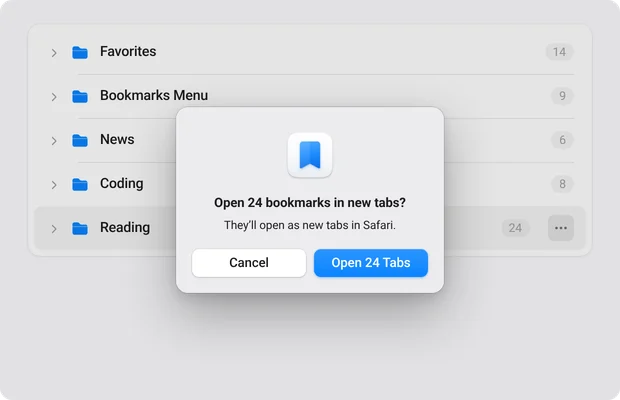
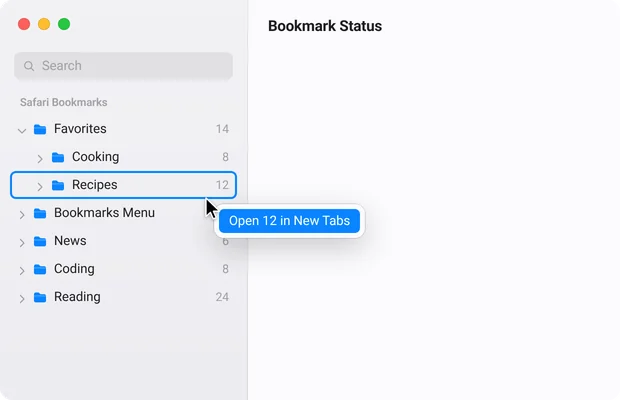
Open a whole folder at once.
Send every bookmark in a folder to new Safari tabs, from the tree or the app. More than 10? It checks with you first.
Mac app
A companion app that stays out of the way.
Browse and search all your bookmarks in a native sidebar. Close the window and Bookmark Status keeps working in the background, one click away in the menu bar.
Folder outline with bookmark counts
Sidebar search with the same site: and host: filters
Menu bar status, plus Open Bookmark Tree
Tue 9:41
Ready · 68 bookmarks
Open Bookmark Status
Open Bookmark Tree
Quit Bookmark Status ⌘Q
How it works
Set it up once. Then just browse.
1
Choose Safari’s bookmarks file
macOS asks you to pick it once. The app and the extension share that access from then on.
In the file panel, press ⇧⌘G and paste ~/Library/Safari/Bookmarks.plist
2
Turn on the extension
Turn on Bookmark Status and allow it on all websites, so the toolbar button can see which page you’re on.
Safari Settings › Extensions › Bookmark Status › All Websites: Allow
3
Browse as usual
The button updates as you switch tabs. Close the app window anytime. It keeps working in the background.
Not saved Saved
Your bookmarks never leave your Mac.
Bookmark Status works entirely on this Mac. No account, no cloud, nothing sent to anyone.
Read-only, always
It reads Safari’s bookmarks file and never writes to it. macOS only gives it read access.
No network, no analytics
No servers, trackers or analytics. Nothing in the app or the extension sends your data anywhere.
Only the page address
The extension compares the current tab’s address with your bookmarks. It never reads page content.
Stored on this Mac
For speed, the extension keeps a list of your bookmark URLs in its local storage. It isn’t encrypted, and it never leaves this Mac.
FAQ
Questions, answered.
Can Bookmark Status add or remove bookmarks?
No, and that’s on purpose. Apple’s Mac App Store rules (App Review Guideline 2.4.5) only let apps change another app’s data, like bookmarks, through macOS APIs made for it. Safari doesn’t offer one for bookmarks.
So Bookmark Status only reads Safari’s bookmarks file and never writes to it. To add or tidy bookmarks, use Safari’s own Add Bookmark ( ⌘D ) and bookmarks editor ( ⌥⌘B ).
What do I need to use it?
A Mac with macOS Ventura 13 or later and Safari 16.4 or later. During setup you pick Safari’s bookmarks file once and turn on the extension with All Websites set to Allow.
Why does it need access to all websites?
So the toolbar button can see the address of the page you’re on and check it against your bookmarks. It doesn’t add scripts to websites or read what’s on the page.
Why does a page show “Not saved” when I bookmarked a similar link?
Matching is exact: a different path or query counts as a different page. The part after # and one trailing slash are ignored. Only web (http and https) bookmarks count; Reading List and History don’t. When the exact page isn’t saved, the tooltip tells you how many pages from that site are, and one click shows them.
Does it work with Safari profiles?
Bookmark Status follows one bookmarks file at a time and uses it in every Safari profile. To follow another profile’s bookmarks, choose that profile’s bookmarks file instead with Choose a Different File… in the app.
What happens when I close the window?
The app leaves the Dock but keeps running, so the toolbar button keeps working. Use the bookmark icon in the menu bar to reopen the window, open the bookmark tree, or quit.
How much does it cost?
PRICE_TBD. Pricing will be confirmed on the Mac App Store at launch.
Know what you’ve saved.
One glance at the toolbar, and you’ll know whether you already saved this page.
Apple, the Apple logo, Mac, macOS, and Safari are trademarks of Apple Inc., registered in the U.S. and other countries. Mac App Store is a service mark of Apple Inc. Bookmark Status is an independent app and is not affiliated with Apple.


 Not saved
 Saved
 Needs access